Apple HomeKit Secure Video Explained: The Camera Privacy Model Nobody Else Offers
Affiliate Disclosure: This article contains affiliate links. If you buy through these links, we may earn a commission at no extra cost to you. Our editorial opinions are our own and are not influenced by affiliate relationships. Read our full disclosure policy →
Contents
Quick Answer
HomeKit Secure Video is Apple’s camera recording service, and its one genuine differentiator is architectural rather than a feature. The motion analysis that decides whether a clip is worth keeping runs on a home hub sitting in your house — an Apple TV or a HomePod — instead of on a manufacturer’s servers, the clip is end-to-end encrypted, and none of the video counts against your iCloud storage. The cost of that design is three hard requirements: a home hub is mandatory, an iCloud+ plan gates how many cameras you may connect, and the list of cameras that actually support it is short. If you already own an Apple TV or HomePod and pay for iCloud+, this is the strongest privacy story in consumer video. If you do not, the entry cost is real and the hardware choice narrows sharply.
What Actually Makes This Different
Almost every camera brand advertises encryption, and almost every one means the same thing by it: the video is encrypted in transit and at rest on the vendor’s servers, where the vendor holds a key so its own software can read the frames and decide whether it saw a person, a package or a passing car. That is not a scandal. It is simply how cloud-side detection has to work.
Apple built HomeKit Secure Video to avoid that step entirely, and the mechanism is documented in Apple’s own platform security guide rather than left as marketing language. When a HomeKit camera detects motion, the clip goes directly to an Apple device acting as a home hub over a dedicated local network connection, encrypted with a per-session HKDF-SHA-512-derived key pair negotiated between the hub and the camera. The hub decrypts the audio and video locally and analyzes the frames for a significant event. Only if it finds one does it encrypt the clip with AES-256-GCM using a randomly generated key and upload it to iCloud, with the metadata and that encryption key going to CloudKit under iCloud end-to-end encryption. Apple describes the whole arrangement as recording, analyzing and viewing clips “without exposing that video content to Apple or any third party”.
One detail in that document answers the obvious objection. When you open a live view from outside the house, the stream is relayed through the home hub — but Apple states the hub does not decrypt it and functions only as a relay between your device and the camera. The hub reads video for the analysis step. It does not read your live view.
The Four Numbers That Define the Service
0 GB
of your iCloud storage is consumed by recorded video
10 days
of rolling activity history you can scroll back through
On device
is where people, pet and vehicle detection runs
3
hard requirements before a single clip records
All four figures come from Apple’s own iCloud User Guide and platform security documentation rather than a third-party summary.
That 10-day window is the number worth internalizing before you commit, because it is fixed. You cannot pay Apple for a longer history the way you can with most vendor plans, and there is no continuous 24/7 recording tier — the service records event clips. If you bought cameras to go back three weeks and find the afternoon a fence panel was damaged, that is a real mismatch, and our guide to how long security cameras keep footage walks through which storage models actually stretch that far.
The diagram below puts the two routes side by side. The left column is the HomeKit Secure Video path exactly as Apple documents it. The right column is the general pattern used by conventional camera clouds, drawn generically rather than pinned on one brand, because the specifics differ from vendor to vendor while the shape does not.
 The same clip, two routes. In the HomeKit Secure Video model the only machines that ever hold readable video are the ones you own.
Read the two verdict boxes at the bottom rather than the boxes at the top. The middle steps are broadly similar; what differs is who ends up handling readable video. In the Apple model, only devices you own. In the conventional model, a company you subscribe to. Whether that matters is a judgment call rather than a technical fact — but it is the judgment call this product exists to serve. Our wider look at where security camera footage should live sets out the same trade for local storage, network video recorders and vendor clouds.
There is a second-order benefit that rarely gets mentioned. Because the analysis happens on hardware you own, the detection features are not a subscription upsell. Apple documents notifications for people, animals, vehicles and package delivery, plus Activity Zones that restrict detection to a region of the frame and face recognition tied to people you have tagged in Photos. No higher tier unlocks smarter detection, because there is no server-side model to meter.
The Three Things You Must Have
This is where buyers get caught. HomeKit Secure Video is not something you switch on inside a camera app. It is assembled from three separate pieces, and missing any one of them means the camera streams live video but records nothing.
Check All Three Before You Buy a Camera
1
A home hub, powered on
A HomePod, HomePod mini or Apple TV. HomePod and HomePod mini become hubs automatically on setup; an Apple TV becomes one when you assign it to a room in the Home app.
2
An iCloud+ subscription
Yours, or one belonging to somebody in your Family Sharing group. Home has to be turned on in your iCloud settings on each device.
3
A camera on Apple’s list
Apple maintains the compatible accessory list on its own Home accessories site, and it is far shorter than the shelf at any electronics store.
4
Not required: a Mac
You can view and share footage on a Mac, but Apple states you must use an iPhone or iPad to add a security camera to Home in the first place.
Apple also lists the practical conditions people forget: the hub has to stay in the home, connected to your Wi-Fi and powered on, with iCloud Keychain and two-factor authentication turned on for your Apple Account.
The home hub requirement is the one that surprises people, and it is worth being blunt about what it means. A HomePod mini or an Apple TV is not an optional accessory here; it is the computer that does the work. Unplugged, taken away on a trip or sitting on a network that has dropped, the analysis step has nowhere to run — Apple’s troubleshooting guidance for hubs is essentially a checklist of that dependency. If your Wi-Fi is marginal, test the signal at the camera’s actual mounting spot before committing.
There is also an ownership wrinkle in shared households. Only the home owner can add a HomePod or Apple TV to the Home app to set it up as a hub, and while everyone you share the home with can view live streams while they are at home, you decide individually whether they may view recordings or stream remotely. That is finer-grained than most camera apps, but it does mean one person is structurally in charge.
The iCloud+ Camera Math
Here is the part that quietly determines how much this costs. The iCloud+ tier you are on does not just buy storage — it caps how many cameras you may connect. Since the footage consumes none of that storage, the storage number is functioning as a license count rather than a capacity limit.
| iCloud+ plan | HomeKit Secure Video cameras | What that realistically covers |
|---|
| 50 GB | One camera | A single front-door camera, or one indoor camera pointed at a main room. Adding a second camera means moving up a tier. |
| 200 GB | Up to five cameras | The tier most whole-home setups land on: front and back doors, a driveway, and one or two indoor rooms. |
| 2 TB, 6 TB or 12 TB | Unlimited cameras | Large properties, or anyone who has already bought the higher tier for photo storage and is effectively getting the camera allowance for nothing. |
Two things follow. If you already pay for a large iCloud+ plan because of a photo library, the marginal cost of adding cameras is zero, which makes this the cheapest cloud recording available to that household. But if you are on the entry tier and buy a second camera, you have quietly signed up for a plan upgrade. That is the honest version of “no extra subscription”: there is no separate camera bill, but the iCloud+ bill you already have is doing the work. Our breakdown of what camera cloud fees actually cost is the right place to compare that against a conventional plan, and readers who want no recurring bill at all should start with the no-subscription systems roundup instead.
The Compatible Camera Problem
This is the weakest part of the proposition and there is no point dressing it up. Apple points buyers at the compatible accessory list on its own Home accessories site, and what you find there is a roster of specialist smart-home brands rather than the names that dominate the aisle. The high-volume American camera lines this site covers most — Ring, Nest, Wyze, Blink, SimpliSafe — do not offer HomeKit Secure Video, so this service means committing to different brands than most of your neighbors buy.
There is a structural reason for the narrowness, and it is finally starting to move. Until recently a camera could only appear in Apple Home by going through Apple’s own HomeKit certification, because the cross-industry Matter standard did not cover cameras at all. That changed on November 20, 2025, when the Connectivity Standards Alliance released Matter 1.5, which the Alliance describes as letting developers build and certify cameras that interoperate directly with Matter-enabled ecosystems without custom APIs, including live video and audio over WebRTC, pan-tilt-zoom control, detection and privacy zones, and local or cloud recording. That is a real change to the standard. What it is not, yet, is a promise that any particular ecosystem has shipped Matter camera support, or that a Matter camera will feed HomeKit Secure Video — we have not verified either, so we are not going to claim them. Treat it as a reason to expect the list to widen, not as a reason to buy on the assumption that it already has.
The second honest limitation is subtler and shows up in the specifications. Cameras built for several ecosystems at once often run in a reduced mode under HomeKit. Aqara’s own product page for the Camera Hub G3 states it plainly: the camera uses a 2K sensor, but in HomeKit Secure Video mode it records in Full HD 1080p, and the pan and tilt controls are not available, “due to the current limitations of HomeKit technology”. We have verified that statement on that product page for that model, and we are not extrapolating it to every camera on the list — but it is exactly the footnote worth hunting for on any multi-ecosystem camera before you buy it for the Apple half of its abilities. The two products below illustrate the two ways manufacturers handle this. They are here as illustrations, not as a ranked lineup.
Aqara 2K Indoor Security Camera Hub G3 — the multi-ecosystem route
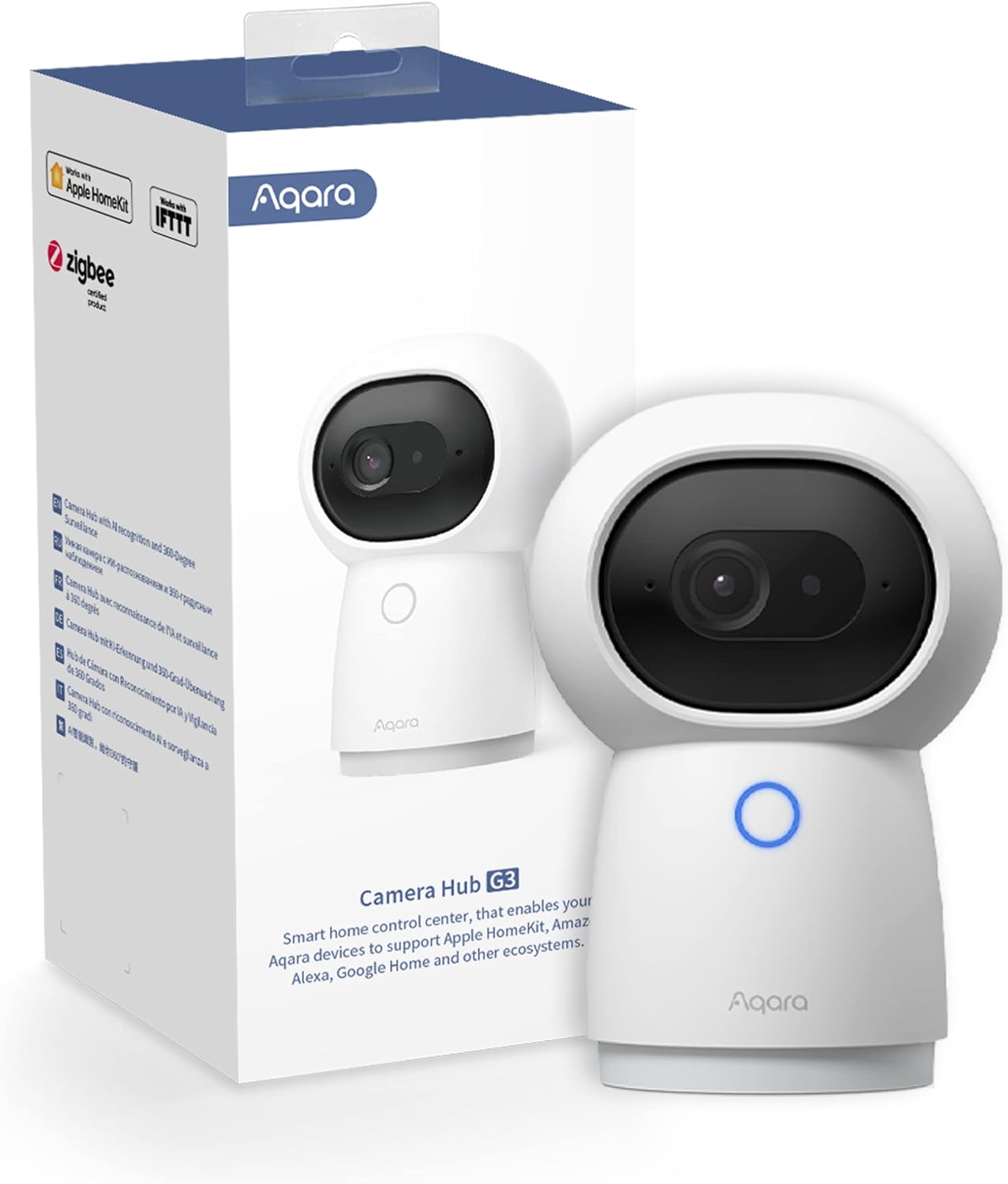
Key specs: 2304 x 1296 (2K) sensor; 110-degree lens on pan and tilt motors for up to 340 degrees of rotation; built-in Zigbee 3.0 hub and infrared controller; AI facial, pet and gesture recognition; records at Full HD 1080p with pan and tilt unavailable when running in HomeKit Secure Video mode
This is the camera to look at if you want to keep your options open, and it is also the clearest illustration of what that costs. The G3 supports HomeKit Secure Video alongside Amazon Alexa and Google Home, and doubles as a Zigbee 3.0 hub and infrared controller, so it can pull existing Aqara sensors and older infrared appliances into the same setup. If you are weighing that hub-in-a-camera design, our explainer on Z-Wave versus Zigbee for home security covers why the built-in radio matters. The caveat is the one quoted above, and it is not small: in HomeKit Secure Video mode the recording drops to 1080p and the pan and tilt motors are unavailable. You are buying a 2K pan-and-tilt camera and then running it as a fixed 1080p camera whenever it is doing the thing this article is about.
✅ Pros
- Works with HomeKit Secure Video, Alexa and Google Home, so the camera survives an ecosystem change
- Built-in Zigbee 3.0 hub and infrared controller do genuine extra work beyond video
- AI facial, pet and gesture recognition available through Aqara’s own app
- A sensible hedge if you are testing Apple Home rather than committing to it
❌ Cons
- Records at 1080p rather than 2K when running in HomeKit Secure Video mode
- Pan and tilt controls are unavailable in HomeKit Secure Video mode
- Indoor only — this is not a front-door or driveway camera
- Two apps to think about, since the Aqara-only features live outside the Home app
Eve Cam — the Apple-only route
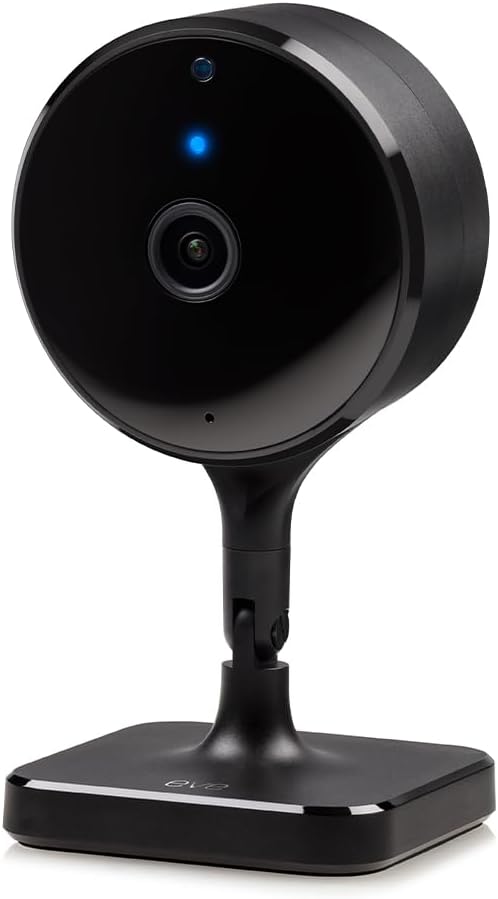
Key specs: 1080p / 24fps H.264 video; fully local on-device image-based motion detection; people and pet recognition; supports HomeKit Secure Video exclusively; requires a HomePod or an Apple TV (4th generation or later) as a home hub plus an iCloud+ plan of 50 GB or larger
Eve took the opposite approach. Eve states that the Eve Cam supports Apple HomeKit Secure Video exclusively, uses your existing iCloud storage with no additional subscription of its own, and relies on your HomePod or Apple TV for the local video analysis. Because there is no second ecosystem to satisfy, there is no reduced HomeKit mode to discover later — what the specification says is what you get. Eve also documents fully local, on-device motion detection and the ability to have the camera deactivate automatically when everyone is home, which pairs neatly with Apple’s separate When Home and When Away recording settings. Its Amazon listing states the same requirements in its own system-requirements bullet — an iPhone or iPad on a current version of iOS or iPadOS, a home hub in the form of a HomePod or an Apple TV running tvOS 15, and an iCloud+ plan the listing is careful to note is not included. The honest counterweights: it is 1080p rather than 2K or 4K, it is indoor only, and its pool of buyer reviews is both small and noticeably less positive than the Aqara’s — a thin, mixed sample rather than a strong consensus.
✅ Pros
- No dual-ecosystem compromise, so no reduced-resolution HomeKit mode to discover
- Uses the iCloud+ plan you already have, with no separate camera subscription
- Local on-device motion detection, and can switch itself off when everyone is home
- Setup requirements are stated up front: an iPhone or iPad, a home hub, and iCloud+
❌ Cons
- 1080p only — lower resolution than most current cameras in its class
- Useless outside the Apple ecosystem; if the household switches phones it is stranded
- Indoor only, and no floodlight, siren or battery option in this model
- A small and mixed pool of buyer reviews compared with mainstream camera brands
What You Give Up Against Ring and Nest
A privacy article that only lists advantages is not much use. Set against the two brands this site covers most, HomeKit Secure Video is narrower in specific ways, and you should know which of them will bother you before buying.
The Honest Trade
✅ What the Apple model gives you
- Detection runs on a device in your house rather than on a vendor’s servers
- Clips are end-to-end encrypted, with the key held in end-to-end encrypted CloudKit
- Recorded video does not consume any of your iCloud storage allowance
- Person, animal, vehicle and package alerts, Activity Zones and face recognition are included rather than tiered
- Separate When Home and When Away recording rules, switched by the location of household devices
❌ What it costs you
- A home hub is mandatory, so there is hardware to buy before any camera works
- Camera count is capped by your iCloud+ tier, which is a real upgrade trigger
- History is a fixed 10-day rolling window with no longer-retention option
- No continuous 24/7 recording tier at all — event clips only
- A short compatible-camera list that excludes the biggest US brands, with some multi-ecosystem models running reduced under HomeKit
The retention limit trips up the most people in practice. Ten days is plenty for a package theft and nowhere near enough for a slow-burn problem you only notice weeks later. The workaround is not clever: keep a second camera with local storage wherever you want a longer tail, which our guide to memory cards for security cameras covers. Readers weighing whole ecosystems rather than one service will find our Nest versus Ring comparison a useful contrast, since both of those solve retention with money rather than architecture.
It is also fair to say what this design does not protect you from. End-to-end encryption governs who can read the footage. It does not govern where you point the camera, and it does not make an indoor camera appropriate in a room where somebody has a reasonable expectation of privacy. Those are separate questions, covered in our guide to what security camera laws let you record and in our room-by-room placement walkthrough. Nor does it help with account security: a weak Apple Account password is still a way in, which is why Apple’s own hub guidance insists on two-factor authentication. The well-documented failures in this category have generally been account and access failures rather than broken cryptography, as our look at whether Ring cameras are safe from hackers sets out.
Who This Actually Fits
Strip out the architecture and the decision comes down to what you already own. There is a household for which this is close to a free upgrade, and a household for which it is an expensive way to buy a worse camera, and the line between them is drawn almost entirely by hardware that has nothing to do with cameras.
It fits you if there is already an Apple TV under the television or a HomePod in the kitchen, you already pay for iCloud+ at 200 GB or above because of a photo library, and everyone in the house carries an iPhone. The hub is bought, the subscription is bought, the camera allowance is included, and the detection features a competitor would charge for monthly cost nothing extra. Under those conditions it is genuinely hard to beat, and the privacy model is a bonus rather than the reason.
It does not fit you if the household is mixed between iPhone and Android, if you have no Apple TV or HomePod and no other reason to buy one, if you need outdoor coverage with a floodlight and a siren, or if you need to look back further than ten days. Any of those, on its own, is enough to make a conventional camera the better purchase, and our indoor camera roundup covers the mainstream options that will not care which phone you own. If you like the idea of on-device processing but not the Apple entry cost, the current Nest indoor camera is the closest mainstream equivalent worth reading about, though it answers the who-holds-the-key question differently.
Final Recommendation
Do one thing before you shop for a camera: open the Home app on your iPhone, tap the More button, choose Home Settings, then Home Hubs & Bridges, and see whether an active home hub is already listed at the top of that screen. That single check decides the whole question. If a hub is there, the rest of this article is a shopping decision. If it is not, you are buying a HomePod or an Apple TV before you buy a camera, and that changes the arithmetic enough that a conventional camera may simply be the better answer.
For readers who clear that check and want a first camera, the honest starting pick is the Aqara 2K Indoor Security Camera Hub G3, precisely because it does not lock you in. If Apple Home turns out not to suit the household, the camera keeps working on Alexa or Google Home, and its Zigbee hub keeps earning its place either way. Accept going in that it records at 1080p with pan and tilt disabled while it is running in HomeKit Secure Video mode — that is the price of the hedge, and Aqara states it on its own page rather than burying it.
Choose the Eve Cam instead if you have already decided this household is an Apple household and will stay one. A camera built for one ecosystem removes the reduced-mode problem entirely and gives you the specification you actually paid for. And walk away from HomeKit Secure Video altogether if any one of these is true: an Android phone in the house, no home hub and no reason to buy one, a need for outdoor floodlight coverage, or a need to review footage older than ten days. Those are not preferences. They are structural mismatches, and no amount of good cryptography fixes them.
SafeBode does not yet run an in-house product testing program. This guide is built from manufacturer specifications, official support documentation, current retail listings and verified buyer feedback rather than hands-on testing, and we say so plainly rather than implying testing we have not done.
Frequently Asked Questions
Do I really need an Apple TV or HomePod, or can my iPhone act as the hub?
You need a dedicated home hub. Apple’s setup article covers HomePod, HomePod mini and Apple TV, and the hub has to stay in the home, on your Wi-Fi and powered on. Your iPhone sets cameras up and views footage; it does not do the analysis.
Does HomeKit Secure Video footage use up my iCloud storage?
No. None of the recorded video counts against your iCloud storage allowance. What the iCloud+ tier controls is how many cameras you may connect, not how much footage you keep.
How far back can I look?
Ten days of rolling activity, in the Home app. There is no paid option to extend that window, which is the biggest functional gap against the longer retention tiers Ring and Nest sell.
Can I record continuously, around the clock?
No. The service records event clips triggered by detected motion. If continuous recording is a requirement, you want a camera with local storage or a network video recorder.
Will a Ring, Nest, Wyze or Blink camera work with it?
Those lines do not offer HomeKit Secure Video, so choosing this service means choosing hardware from a different set of brands. Check a specific model against Apple’s own Home accessories list before buying anything.
Can other people in my house see the cameras?
Anyone you share the home with can view live streams while they are at home. Whether they may also view recordings, stream remotely or manage the cameras is set individually per person, which is finer-grained than most camera apps offer.
Does Apple see my video?
Apple’s platform security documentation describes the mechanism as recording, analyzing and viewing clips without exposing the video content to Apple or any third party. The clip is encrypted on your home hub before upload, and the key travels through end-to-end encrypted storage.
Does the camera still work if my internet goes down?
Recording to iCloud does not, because the clip has to be uploaded. Whether anything else keeps working depends on the camera; some keep local automations running over their own radio without internet, but that is a camera feature rather than something this service provides.
Does Matter mean any camera will work with Apple Home soon?
Matter added cameras to the standard in late 2025, which is a real reason to expect the compatible list to widen. It is not a guarantee that a given ecosystem has shipped support, or that a Matter camera will feed Apple’s recording service. Check the individual product rather than assuming.
Is a 2K or 4K camera worth it for this?
Only after checking how that model behaves under Apple’s recording service. At least one popular multi-ecosystem camera drops to 1080p and disables its pan and tilt motors in that mode, so the resolution on the box is not necessarily the resolution you get.
Sources
Show sources (9)


