How to Reset a Kwikset Smart Lock: Step-by-Step for Every Model (2026)
Affiliate Disclosure: This article contains affiliate links. If you buy through these links, we may earn a commission at no extra cost to you. Our editorial opinions are our own and are not influenced by affiliate relationships. Read our full disclosure policy →
If your Kwikset smart lock is acting up, you inherited one from a previous homeowner, or you just want to wipe every stored code and start fresh, the fix is a factory reset — and on almost every current Kwikset model, it takes under a minute and needs no tools. The exact button sequence depends on which Kwikset you have, so this guide walks through every current lock family separately rather than giving one generic set of steps that only works for some of them.
Table of Contents
Quick Answer
On most Kwikset SmartCode and Signature Series deadbolts, a factory reset is: remove the battery pack, press and hold the Program button while reinserting the batteries, keep holding for 30 seconds until the lock beeps and the LED flashes red, then press the Program button once more until the LED flashes green. Wi-Fi models (Halo, Halo Touch, Aura) reset through the Kwikset app instead of a physical button, and Kevo resets with a dedicated reset button held for 10 seconds. Every method below is sourced directly from Kwikset’s own support documentation for each lock family.
Which Kwikset Lock Do You Have?
Kwikset has sold several genuinely different smart lock architectures under overlapping model names, and the reset procedure is not interchangeable between them. Before following any steps below, confirm which family your lock belongs to — the model number is usually printed on a sticker inside the battery compartment, or you can match your lock to one of these categories by look and feature set:
- SmartCode / Signature Series keypad deadbolts and levers — physical number keypad (raised buttons or a light-up touchpad), no phone app required, no Wi-Fi. Model numbers like 909, 910, 913, 916, 917, 260, 270.
- SmartCode Touchscreen — flat glass touchscreen keypad instead of raised buttons, still no Wi-Fi. Model numbers like 955, 888.
- Halo, Halo Touch, Aura — connects directly to your home Wi-Fi, controlled through the Kwikset app, no separate hub needed. Halo Touch adds a fingerprint reader.
- Halo Select, Aura Reach — newer Matter-enabled models, also app-controlled, reset only deletes access codes rather than the full device pairing.
- Kevo — Bluetooth-only “touch-to-open” lock, no keypad on the exterior at all, has a small physical reset button on the interior assembly.
Still not sure? Kwikset’s support site has a model lookup by product photo and by the numbers printed on your lock’s interior label.
| Model Family | How to Identify It | Jump to Reset Steps |
|---|
| SmartCode / Signature Series | Physical keypad, no app, no Wi-Fi | Steps → |
| SmartCode Touchscreen | Flat glass touchscreen keypad, no Wi-Fi | Steps → |
| Halo / Halo Touch / Aura | Wi-Fi + app control, no separate hub | Steps → |
| Halo Select / Aura Reach | Matter-enabled, app-controlled | Steps → |
| Kevo | No exterior keypad, Bluetooth touch-to-open | Steps → |
Quick Visual Reference

SmartCode / Signature Series
Physical keypad, no app
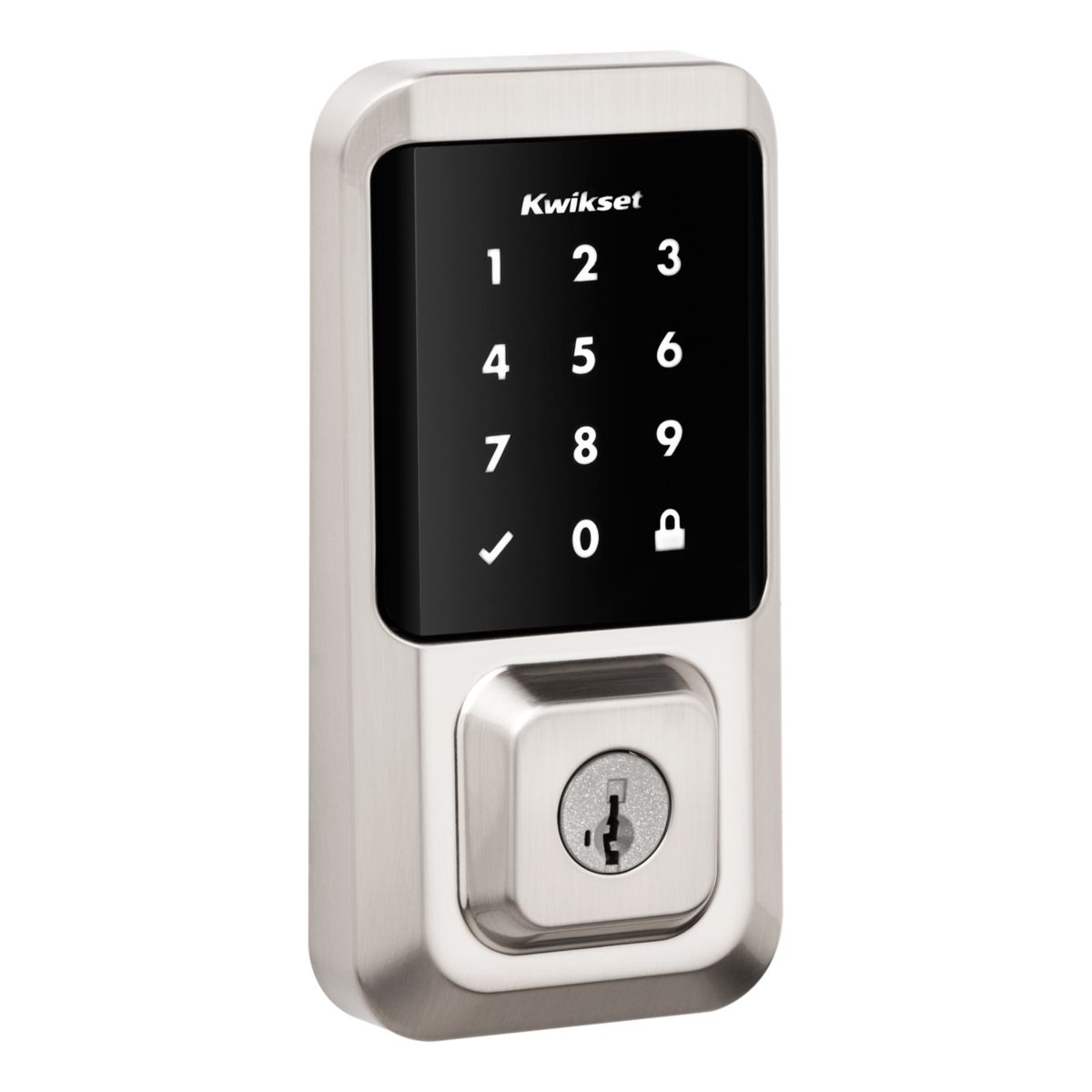
Halo / Halo Touch / Aura
Glass touchscreen, Wi-Fi + app

Kevo
No exterior keypad, Bluetooth touch-to-open
Before You Start
- No tools required for any reset method below — everything is done by hand.
- A factory reset deletes everything: every user code, the master code, Wi-Fi credentials, Bluetooth pairings, and event history. There is no way to reset just one setting while keeping the rest.
- If your lock is paired to a smart home system (Alexa, Google Home, SmartThings, Z-Wave/HomeConnect hub), a factory reset removes that pairing too, and you’ll need to re-add the lock afterward.
- Have your door open before you start. On several models the reset process re-triggers the door-handing calibration, which needs the door open to complete correctly.
SmartCode & Signature Series Deadbolts and Levers
This is the most common Kwikset smart lock family and covers the majority of “kwikset smart lock reset” searches. The steps are identical whether you have a deadbolt or a lever handle:
- Remove the battery pack from the interior of the lock.
- Press and hold the Program button while reinserting the battery pack. Keep holding for a full 30 seconds until the lock beeps and the status LED flashes red.
- Press the Program button once more. When the LED flashes green and you hear two beeps, the reset is complete.
- The lock will start the door-handing process automatically — the latch bolt extends and retracts to learn which way your door swings. Let it finish.
- If this is a HomeConnect (Z-Wave) lock, run the inclusion process again to re-add it to your hub.
Once reset, the lock returns to its default master code and default user code (see the safety note below) — program your own codes before relying on the lock again.
SmartCode Touchscreen Locks
Touchscreen models (glass keypad instead of raised buttons) use the same button-and-battery sequence, but the LED feedback pattern is slightly different:
- Remove the battery pack.
- Press and hold the Program button while reinserting the battery pack. Hold for 30 seconds until the lock beeps and the LED flashes red.
- Press the Program button once more. The LED will flash green and red several times in a row — this is normal and different from the simpler two-beep confirmation on standard SmartCode models.
- After a few seconds the lock automatically runs the door-handing process, extending and retracting the latch bolt.
Halo, Halo Touch, and Aura (Wi-Fi App-Based)
These connect directly to your home Wi-Fi rather than needing a separate hub, and the reset happens through the Kwikset app rather than a hidden interior button:
- Open the Kwikset app and delete the lock from your home.
- On your phone’s Bluetooth settings, find the lock and select “Forget Device” so your phone stops trying to reconnect to the old pairing.
- On the lock itself, run the in-app or on-device factory reset process, which clears Bluetooth pairings, Wi-Fi credentials, user codes, and event history, and resets all lock settings including door handing.
- Set the lock up again as if it were brand new.
Note: access codes and event history stay visible inside the app until you actually delete the lock from your home — deleting the lock is what triggers the reset, not just clearing individual codes.
Halo Select and Aura Reach (Matter-Enabled)
Kwikset’s newer Matter-enabled locks handle resets differently on purpose: a factory reset on these models deletes all access codes and their schedules and returns lock settings to default, but it does not fully re-pair the device the way a Halo reset does — the lock shows as offline in the Kwikset app and needs to be reactivated through setup again before it will accept new codes. Use this when you’re changing ownership, lost the paired phone, or troubleshooting a lock that won’t accept new codes.
Kevo (Bluetooth)
Kevo has no exterior keypad at all, so its reset is a simple physical button on the interior assembly:
- Locate the reset button on the interior half of the lock.
- Press and hold it for 10 seconds until the lock beeps and the lock-face LEDs flash red.
After a Kevo reset, you’ll need to re-enroll your Owner phone and any fobs, and resend eKeys to anyone else who had access.
What Actually Happens During a Reset (SmartCode Models)
The 30-second button hold isn’t arbitrary — it’s the lock distinguishing a genuine reset request from an accidental button bump. Here’s what each stage means:
STEP 1
Battery removed, then reinserted while you hold the Program button. The lock powers on already listening for a reset command instead of resuming normal operation.
STEP 2
30-second hold + red flash. This confirms you deliberately held the button through a full countdown, not an accidental one-second press.
STEP 3
Second button press + green flash. This is the actual erase — codes, pairings, and settings clear at this point, not before.
STEP 4
Door handing. The lock cycles the latch bolt to relearn which way your door opens — skip this by closing the door too early and the latch may not seat correctly.
Change the Default Codes Immediately
A factory reset on keypad SmartCode models restores a default master code and a default user code — typically 0-0-0-0 and 1-2-3-4. These are publicly documented and not a secret, so the lock is not meaningfully secured until you program your own codes. This matches general federal guidance on connected devices: default credentials are one of the most commonly exploited weaknesses in consumer hardware, and manufacturers and users alike are advised to replace them immediately rather than leave factory defaults in place.
Reset Not Working? Common Problems
Quick Diagnosis
No beep or LED at all
Dead or improperly seated batteries
Beeps but reset doesn’t take
Program button released before the 30-second hold completes
Program button unresponsive
Try the SmartKey tool’s flat end; no response at all likely means a hardware failure
Door won’t lock correctly
Door-handing step didn’t complete — redo it, don’t force the deadbolt
No beep or LED response at all
Almost always dead or improperly seated batteries. Replace all 4 AA batteries with fresh ones (not a mixed old/new set) and confirm the battery pack is fully clicked into place before trying again.
Lock beeps but the reset doesn’t seem to take
The most common cause is releasing the Program button before the full 30-second hold completes. Time it deliberately rather than estimating — releasing even a few seconds early cancels the reset silently, with no error indication.
Program button doesn’t respond at all
Some SmartCode models let you press and hold using the flat end of the included SmartKey tool, or a straightened paper clip, if the button itself feels stuck. If there’s genuinely no response after fresh batteries and a firm press, the button mechanism itself has likely failed, and that’s a hardware problem a reset can’t fix — see the replacement section below.
Door won’t lock correctly after reset
This usually means the door-handing step didn’t complete. Make sure the door is open and the latch bolt has room to extend and retract fully, then trigger the handing process again from the lock’s settings menu rather than forcing the deadbolt by hand.
When It’s Time to Replace Instead of Reset
Per Kwikset’s own support documentation, a reset fixes software problems — forgotten codes, a confused pairing, leftover data from a previous owner. It doesn’t fix a physically worn keypad, a Program button that no longer registers presses, or a lock old enough that replacement parts are hard to find. If you’ve confirmed the hardware itself is the problem, here are two current Kwikset models worth considering, chosen for opposite reasons: one for households that want the newest Wi-Fi feature set, one for anyone who’d rather keep it simple.
Best If You Want Wi-Fi and App Control: Kwikset Halo Touchscreen
- Connects straight to home Wi-Fi — no separate smart-home hub required
- Touchscreen keypad plus a physical key cylinder as backup
- Works with Alexa and Google Assistant for voice lock-check and lock commands
- SecureScreen technology randomizes digit positions before code entry, so a smudge pattern on the screen can’t reveal your code
Honest limitation: being Wi-Fi-connected means it’s one more device on your network to keep updated, and app-based locks are exactly the category the safety note above is warning about — change the default app password and enable two-factor authentication on your Kwikset account when you set it up.
Best If You Want to Keep It Simple: Kwikset SmartCode 270
- Light-up touchpad keypad, no Wi-Fi or app dependency at all
- Grade 2 BHMA-certified — rated up to 2.5× stronger than Grade 3 residential locks
- Up to 50 customizable user codes
- Same SmartKey re-key system as Kwikset’s traditional locks, so a locksmith can re-key it in seconds if you move in without the original codes
Honest limitation: no remote access, no app, no voice control — if you want to check or lock your door from your phone while away, this isn’t the pick.
Weighing more than two options, or want to see how Kwikset compares to other brands? Our full smart lock roundup covers subscription-free picks across several manufacturers, and if you’re also deciding between a smart lock and a video doorbell for the same door, see our doorbell-vs-lock comparison.
Weighing this against other options? See our Smart Locks hub for a full breakdown by situation.
What to Actually Do
Identify your lock family first, then follow only that family’s procedure. This is where most failed resets come from — a SmartCode procedure attempted on a Halo, or a Kevo reset tried on a keypad deadbolt. The button-and-battery method and the app-based method are not interchangeable.
Change the default codes immediately after the reset completes. A factory reset restores the factory master and user codes, which are published and identical on every lock of that model. A lock sitting on its default code is meaningfully less secure than the one you had before you reset it.
If the reset does not take, re-seat the battery pack before assuming the lock has failed. A pack that is not making full contact produces exactly the symptoms of a dead Program button, and it costs nothing to rule out.
A reset fixes software: forgotten codes, a confused pairing, a previous owner’s data. It does not fix a worn keypad or a Program button that no longer registers. If you have confirmed the hardware is the problem, replacing the lock is the real answer, not another reset.
FAQ
Does resetting my Kwikset lock delete all the codes?
Yes, on every model. A factory reset removes every user code and the master code, and on Wi-Fi/Bluetooth models it also removes app pairings and event history. There’s no partial reset that keeps some codes and clears others.
What is the default code after a factory reset?
On most keypad SmartCode models, the default master code is 0-0-0-0 and the default user code is 1-2-3-4. Change both immediately — these defaults are public knowledge, not a real security measure.
Will I need to re-pair my lock with Alexa, Google Home, or SmartThings after a reset?
Yes. A factory reset removes the lock’s smart-home pairing along with everything else, so you’ll need to re-link it inside whichever smart-home app you use, the same way you did during original setup.
Can I reset a Kwikset lock without knowing the current code?
Yes — that’s the entire point of the Program-button reset method. It works from inside the battery compartment and doesn’t require entering any existing code on the keypad, which is exactly what makes it useful when you’ve lost or never had the code.
How do I know which Kwikset model I have?
Check the sticker inside the battery compartment for a model number, or match your lock’s keypad style (raised buttons, glass touchscreen, or no keypad at all) against the descriptions in the “Which Kwikset Lock Do You Have?” section above.
Does a factory reset fix a lock that won’t lock or unlock at all?
Sometimes, if the problem is a corrupted setting or confused pairing. It won’t fix a mechanical or hardware failure — a jammed latch bolt, worn gears, or a dead Program button. If a reset doesn’t resolve the issue, the cause is more likely physical than digital.
A note on our research approach: SafeBode has not physically tested every Kwikset lock model referenced in this guide. Every reset procedure above is sourced directly from Kwikset’s own official support documentation for that specific model family, linked in the Sources section below, rather than paraphrased from third-party guides. Where a step could vary by firmware version, we’ve noted it.
Battery warnings acting up rather than a code issue? Our guide to testing a dying smart lock battery covers the real warning signs, the most common false-alarm cause, and which battery type to actually use.
Sources
Show sources (8)
- Kwikset, “How do I perform a factory reset on my smart lock?”
- Kwikset, “How to restore default settings on my Signature Series or SmartCode Deadbolt”
- Kwikset, “How to restore default settings on my SmartCode touchscreen”
- Kwikset, “How to restore default settings on my SmartCode lever”
- Kwikset, Factory Reset support hub (all models)
- Kwikset, “How Can I Reset My Kevo Smart Lock?”
- Kwikset, Factory Reset support hub (default code and Halo/Halo Select detail)
- CISA, “Risks of Default Passwords on the Internet”


