How to Reset a Ring Doorbell: Every Model, Step by Step (2026)
Affiliate Disclosure: This article contains affiliate links. If you buy through these links, we may earn a commission at no extra cost to you. Our editorial opinions are our own and are not influenced by affiliate relationships. Read our full disclosure policy →
A factory reset clears your Ring doorbell’s local configuration; it does not release account ownership. If you bought one secondhand or are preparing to sell or give away your own, ownership must be transferred separately through the Ring app. Depending on which Ring doorbell you have, the exact button sequence looks different. Ring’s own support documentation groups every doorbell into three reset categories by how the device is powered, and this guide walks through each one directly from that source, plus the one troubleshooting step almost everyone skips before reaching for a full reset.
Table of Contents
Quick Answer
Every Ring doorbell resets the same way at its core: hold the setup button for 20 seconds, then release. What changes is where that button is — on the back for doorbells with an internal (non-removable) battery, under the faceplate on the front for older removable-battery models, and under the faceplate on the right side for wired models. Before doing a full reset, try a power cycle first (remove the battery for 10 seconds, or unplug a wired unit) — it fixes most connectivity glitches without erasing your settings.
Which Ring Doorbell Do You Have?
Ring doesn’t publish reset instructions by individual model name — it groups every doorbell into three categories by power type, and the button location follows the category, not the specific model. Match your doorbell to one of these before continuing:
- Internal battery — the battery is sealed inside and isn’t meant to be removed for everyday charging (you charge the whole unit or a plug-in cable instead). Covers the current Battery Doorbell, Battery Doorbell Plus, and Battery Doorbell Pro. Setup button is on the back of the device.
- Removable battery (legacy) — an earlier design where a battery pack pops out from behind a faceplate for charging. Covers the older Video Doorbell 2, Video Doorbell 3, Video Doorbell 3 Plus, and Video Doorbell 4 — all previous-generation models, but still widely in use. Setup button is under the faceplate, on the front of the device.
- Wired — connects to your existing doorbell wiring or Power over Ethernet, no battery to charge at all. Covers Video Doorbell Wired, Wired Doorbell Pro, and Wired Doorbell Elite. Setup button is under the faceplate, on the right side of the device.
Not sure which you have? The battery type is the fastest tell — if there’s no removable battery pack at all, it’s either the internal-battery or wired category, and you can confirm which by checking whether it’s connected to doorbell wiring.
Quick Visual Reference
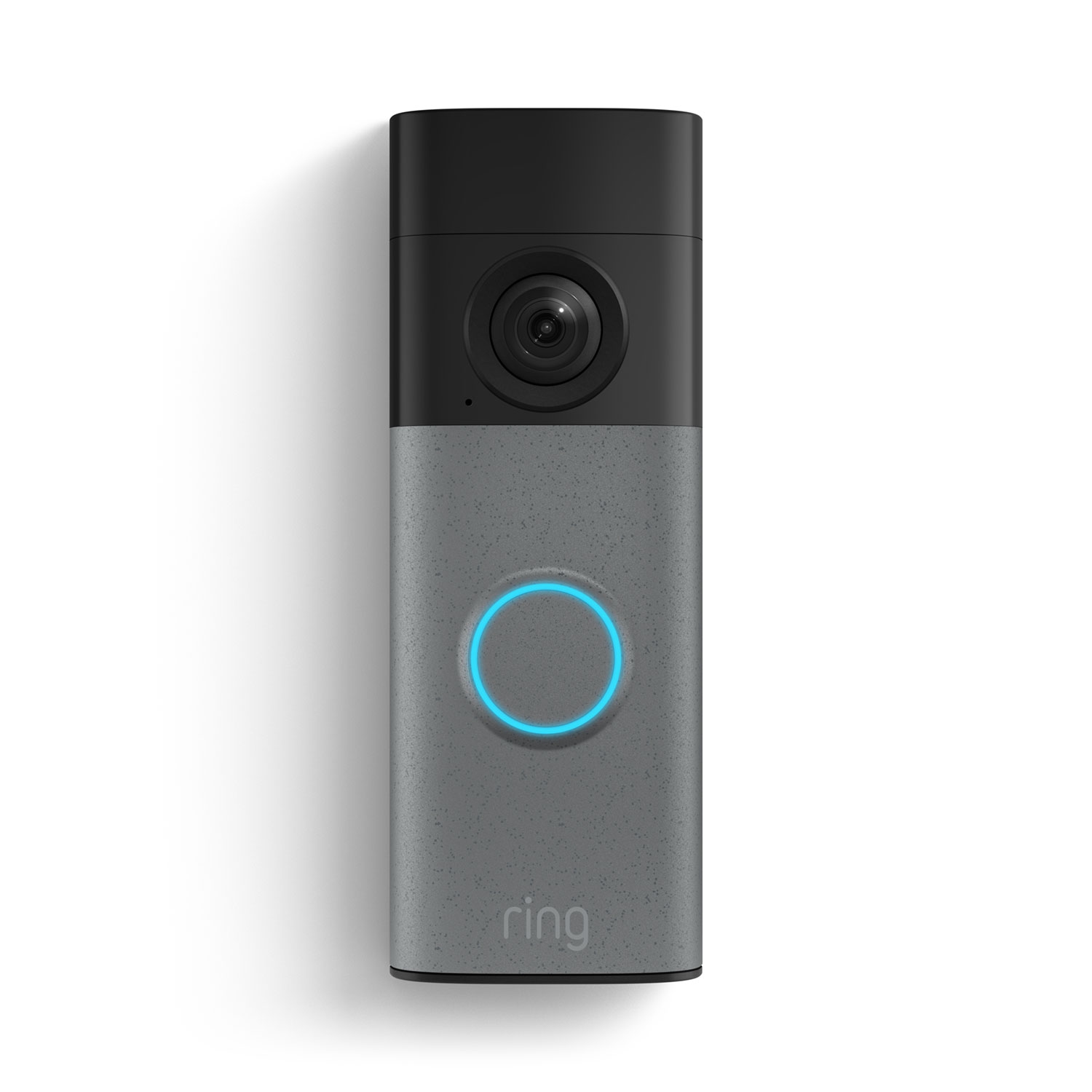
Internal Battery
Ring Battery Doorbell (current line)
Button on the back

Removable Battery (Legacy)
Video Doorbell 2/3/3 Plus/4 — shown is the pop-out Quick Release Battery Pack itself, since this doorbell generation is no longer sold new
Button under front faceplate

Wired
Ring Wired Doorbell Pro
Button under right-side faceplate
Power Cycle vs. Factory Reset: Try This First
Not every problem needs a full factory reset, and it’s worth trying the smaller fix first since a factory reset clears local settings and requires reconfiguration, but does not release account ownership. Ring documents these as two distinct troubleshooting steps:
| Power Cycle (Soft Reset) | Factory Reset (Hard Reset) |
|---|
| What it does | Restarts the device | Clears local settings and restores factory configuration |
| Battery models | Remove the battery for 10 seconds, reinsert | Hold setup button for 20 seconds |
| Wired models | Turn off the power source (breaker/switch) for 10 seconds | Hold setup button for 20 seconds |
| Wi-Fi settings | Preserved | Erased — must reconnect |
| Account link | Preserved | Ownership retained — transfer or remove separately in the Ring app |
If your doorbell is offline, unresponsive, or acting glitchy but you don’t actually need to change Wi-Fi networks or clear local settings, a power cycle is worth trying first — it solves a real share of these problems in ten seconds without the reset-and-reconfigure hassle. Reach for the full factory reset covered below when you need to clear local configuration. If the doorbell is changing owners, also complete Ring’s separate in-app ownership-transfer process; resetting the hardware does not remove the previous account.
Before You Start
- No tools required on internal-battery or removable-battery models — everything is done by hand. Wired models may need a small screwdriver to remove the faceplate, depending on the mounting screw type.
- A factory reset clears local configuration, including Wi-Fi credentials and device settings. It does not release the Ring account’s ownership; any required ownership transfer must be completed separately before a new owner can finish setup.
- If you’re selling, donating, or returning a used smart-home device, follow the manufacturer’s data-removal instructions before handing it over. For a Ring doorbell, release ownership through the Ring app and reset local settings as separate steps; the hardware reset alone does not release account ownership.
- Have the Ring app ready on your phone before you start if you’re planning to set the doorbell up again immediately afterward.
- Setting up a brand-new doorbell instead of resetting one? Our Ring doorbell installation guide covers physical mounting and WiFi pairing step by step.
Internal Battery Models
Covers the current Battery Doorbell, Battery Doorbell Plus, and Battery Doorbell Pro:
- Locate the setup button on the back of the doorbell.
- Press and hold the setup button for a full 20 seconds, then release.
- The front light ring will flash a few times as the doorbell restarts.
- Once the light ring settles, the doorbell has returned to factory settings. Set it up again in the Ring app as if it were new.
Removable Battery Models (Legacy)
Covers the older Video Doorbell 2, 3, 3 Plus, and 4 — the generation before Ring switched to sealed internal batteries:
- Remove the doorbell’s faceplate to expose the setup button underneath, on the front of the device.
- Press and hold the setup button for a full 20 seconds, then release.
- The light ring will flash to confirm the restart.
- Reattach the faceplate once the reset completes, then set the doorbell up again in the Ring app.
Wired Models
Covers Video Doorbell Wired, Wired Doorbell Pro, and Wired Doorbell Elite:
- Remove the faceplate to expose the setup button underneath, on the right side of the device.
- Press and hold the setup button for a full 20 seconds, then release.
- The light ring will flash a few times as the doorbell restarts.
- Reattach the faceplate, then set the doorbell up again in the Ring app.
What Actually Happens During a Reset
The 20-second hold isn’t arbitrary — it’s long enough that an accidental brush against the button won’t trigger a reset by mistake. Here’s what each stage means:
STEP 1
Button held down. The doorbell starts an internal countdown rather than responding to a normal short press.
STEP 2
20-second threshold reached. This is the point the doorbell treats the press as a deliberate reset request, not an accidental bump.
STEP 3
Wi-Fi credentials and local settings reset. Account ownership remains registered until it is released separately in the Ring app.
STEP 4
Light ring flashes and the doorbell restarts into its out-of-box state, ready for setup as if new.
Reset Not Working? Common Problems
No light response at all
On battery models, this usually means the battery is dead or not seated correctly. On wired models, check that the doorbell is actually receiving power at the transformer or breaker before assuming the button itself is at fault.
Light flashes but the doorbell doesn’t fully reset
The most common cause is releasing the button before the full 20-second hold completes. Time it deliberately rather than estimating — releasing even a few seconds early can cancel the reset without any clear error indication.
Doorbell resets but won’t reconnect to Wi-Fi
Confirm you’re connecting to a 2.4GHz network specifically — most Ring doorbells don’t support 5GHz, and a router broadcasting only a combined or 5GHz-only network name is a common setup snag after a reset.
Setup button doesn’t respond at all
If the battery is fresh (or the wired unit is confirmed powered) and a firm 20-second hold still produces no light response whatsoever, the button mechanism itself has likely failed. That’s a hardware problem a reset can’t fix — see the replacement section below. For an older wired doorbell, our doorbell troubleshooting guide works through the whole circuit in order.
When to Replace Instead of Reset
A reset fixes software problems — a stuck Wi-Fi pairing, stored local configuration, a doorbell that needs to change networks. It doesn’t fix a physically dead button, a battery that no longer holds a charge, or a unit old enough that Ring no longer supports it with firmware updates. If you’ve confirmed the hardware itself is the problem, here are two current models worth considering, chosen for opposite installation types:
Best If You Want No Wiring at All: Ring Battery Doorbell
- Sealed internal battery, no faceplate to remove for charging
- Retinal 2K video with wide-angle coverage and up to 6x zoom
- Installs in minutes with no doorbell wiring required
- One of Ring’s best-reviewed current doorbells on Amazon
Honest limitation: battery doorbells need periodic recharging, and how often depends heavily on motion-alert frequency — a high-traffic front door will need charging more often than the spec sheet implies.
Best If You Already Have Doorbell Wiring: Ring Wired Doorbell Pro
- Runs on existing doorbell wiring — never needs charging or battery swaps
- Retinal 4K video with wide-angle coverage and up to 10x zoom
- Low-light sight for clearer nighttime footage
- Amazon’s Choice in wired video doorbells
Honest limitation: requires existing doorbell wiring compatible with Ring’s power requirements — not a fit for a door that never had a wired doorbell before, unless you’re prepared to run new wiring.
Weighing more Ring options across the full lineup, including cameras and Floodlight models? Our Ring camera roundup compares every current doorbell and standalone camera side by side. And if you’re deciding between several no-subscription doorbell brands rather than staying in the Ring ecosystem, see our wireless video doorbell comparison.
Weighing this against other options? See our Video Doorbells hub for a full breakdown by situation.
What to Actually Do
Try a power cycle before you reset anything. Pull the battery for ten seconds, or unplug a wired unit, then reconnect. This clears most connectivity glitches and, unlike a factory reset, it keeps your local settings intact.
If that does not fix it, work out which of the three groups your doorbell belongs to, then hold the setup button for twenty seconds. The procedure is the same across the range; only the button’s location changes — on the back for internal-battery models, under the front faceplate on older removable-battery models, and under the right-side faceplate on wired ones.
Release ownership in the Ring app before selling, giving away or returning a doorbell. Resetting local settings is a separate step; it does not release account ownership or delete recordings already saved to Ring’s cloud.
If a reset does not hold — the button no longer registers, or the battery will not keep a charge — the problem is hardware, and no amount of resetting will fix it. That is the point at which replacing it is the honest answer.
FAQ
Does resetting my Ring doorbell delete my recordings?
A factory reset erases the device’s local settings and Wi-Fi credentials, but does not release account ownership. Recordings already saved to Ring’s cloud (if you have a Ring subscription) stay tied to your Ring account, not the physical device — they aren’t deleted by resetting the doorbell itself.
How do I remove a Ring doorbell from a previous owner’s account?
A physical factory reset does not remove a Ring doorbell from its previous owner’s account or transfer ownership. Ask the previous owner to release the device through the Ring app’s ownership-transfer process. If you cannot contact them, start device setup in your Ring app and follow the “Request Ownership” prompts.
Should I try a power cycle before a full reset?
Yes, if you’re just troubleshooting connectivity or responsiveness issues. A power cycle (removing the battery for 10 seconds, or cutting power on a wired unit) restarts the device without erasing Wi-Fi settings or your account link, and fixes a real share of glitches without the reset-and-reconfigure hassle.
Why won’t my Ring doorbell reconnect to Wi-Fi after a reset?
Most Ring doorbells only support 2.4GHz Wi-Fi, not 5GHz. If your router broadcasts a combined or 5GHz-only network name, you may need to temporarily create a separate 2.4GHz-only network name in your router settings to complete setup.
How do I know which Ring doorbell category I have?
Check whether the battery is sealed inside (internal battery), pops out from behind a faceplate (removable battery, an older design), or there’s no battery at all because it’s connected to doorbell wiring (wired). See the “Which Ring Doorbell Do You Have?” section above for the full breakdown by category.
A note on our research approach: SafeBode has not physically tested every Ring doorbell model referenced in this guide. Every reset procedure above is sourced directly from Ring’s own official support documentation, linked in the Sources section below, rather than paraphrased from third-party guides.
Sources
Show sources (6)
- Ring, “How to Completely Reset Your Ring Video Doorbell”
- Ring, “Reset or Power Cycle Your Ring Device”
- CISA, “Proper Disposal of Electronic Devices”
- Ring, Battery Doorbell product page
- Ring, Wired Doorbell Pro product page
- Ring, Transfer ownership of a Ring device


